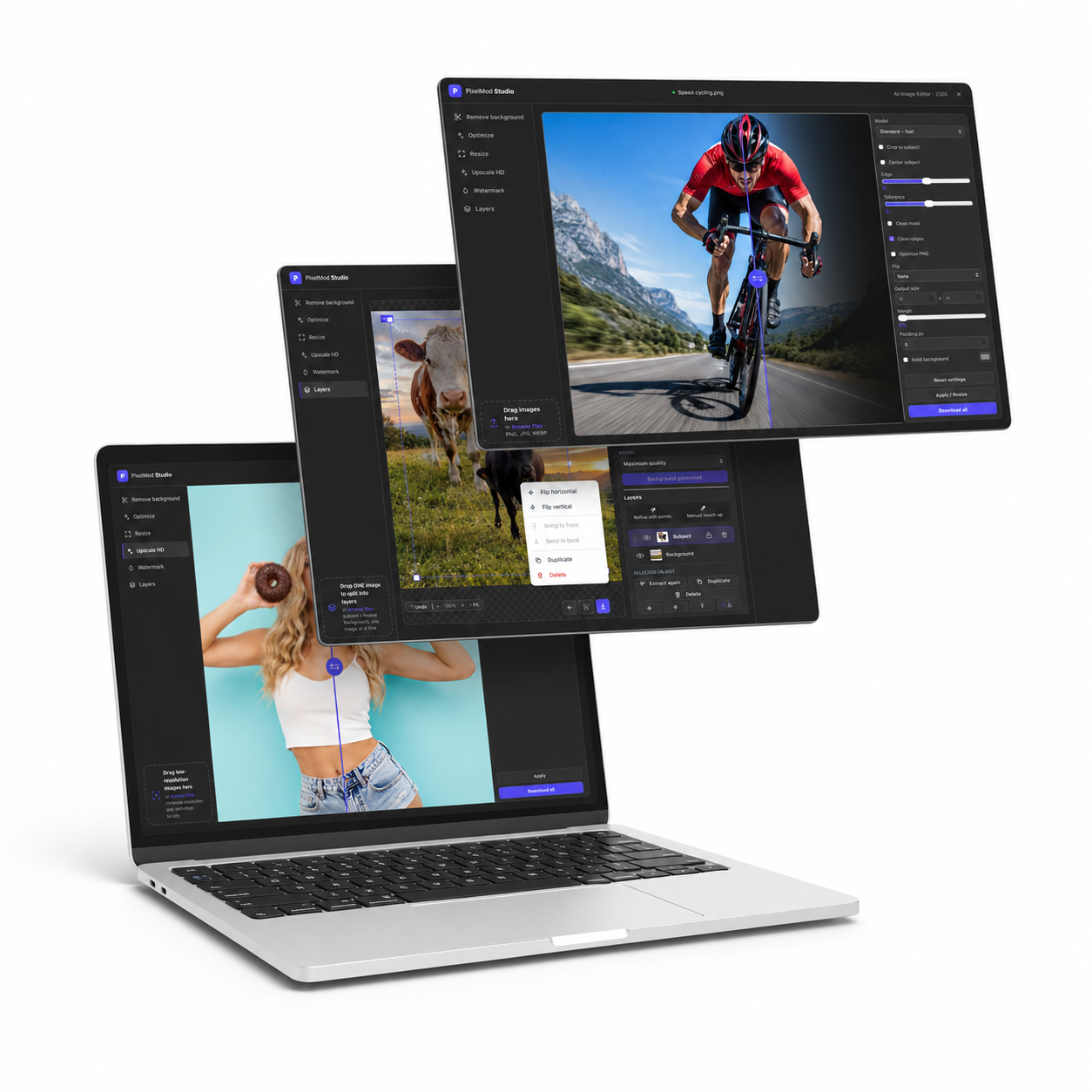
Drop an image to remove its background
or · PNG, JPG, WEBP · one image at a time
Heads up: very low-res, pixelated, or busy-background photos may not cut perfectly and can need a quick manual touch-up.
Mask & edge controls
Output & canvas controls
Drop a low-res image to upscale to HD
or · increase resolution and definition locally · one image at a time
Heads up: heavily compressed or tiny images gain the most, but extreme cases may still look soft and need a light touch-up.
Waiting
Estimating time…
Drop images to shrink their file size
or · compress only, no background removal
Heads up: aggressive color or quality settings can add visible artifacts — preview one before exporting the whole batch.
Drop an image to extend it
or · the original image stays unchanged
Extend Image
Adjust the canvas and generate only the new areas.
Output canvas
Image position
Drag the canvas edges to choose where to extend.
Drop images to resize them
or · resize + optimize, no background removal
Heads up: crop and exact modes can shift the framing — check the preview so nothing important gets cut off.
Drop images, then add your logo
or · then upload a logo below
Heads up: position, size and opacity are yours to fine-tune — drag the logo on the preview until it sits just right.
Drop images, then add your logo
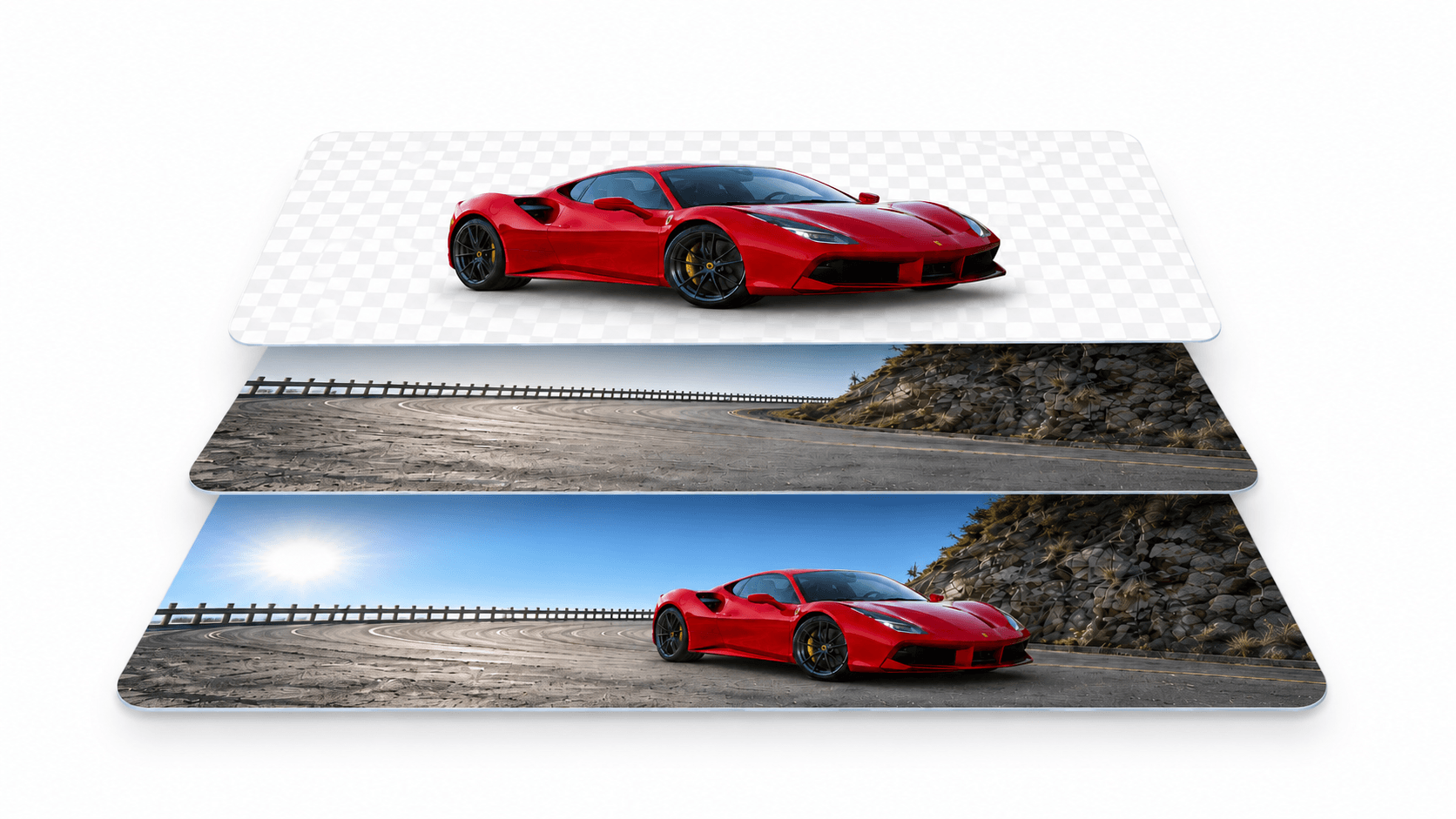
Drop an image to split subject from background
or · subject + healed background, one image at a time
Heads up: works best on one clear subject — complex scenes or soft edges may need a manual touch-up after the split.
Drop an image to split it into a subject and a healed background
Preview the default model first. You can load one more option without delaying the upload; the background is generated only after you choose a silhouette.