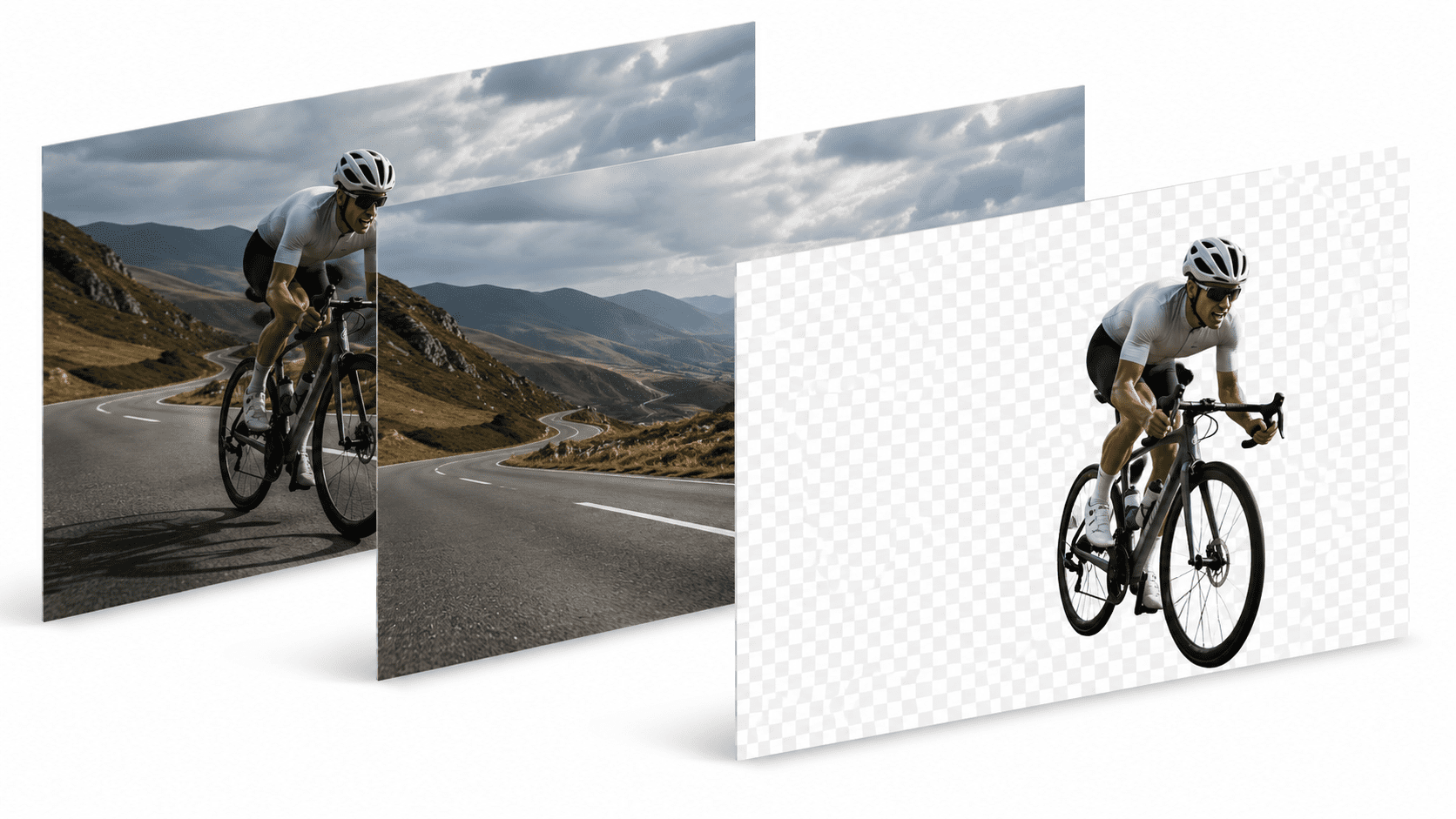
Background removal
How to Remove a Background Without Losing Fine Detail Like Hair or Fur
Published July 26, 2026 · 6 min read

Most background removal is genuinely excellent on the easy case: a solid subject, sharp edges, a plain background. Hair, fur, wispy fabric, glass, and anything semi-transparent is a different story — that's where automatic cutouts most often go wrong, chopping off strands or leaving a faint halo around the subject.
Why fine detail is the hard case
An AI segmentation model has to decide, pixel by pixel, whether something belongs to the subject or the background. A clean edge — a phone case against a table — is an easy decision. A strand of hair that's half-transparent against a busy background is not: the model has to guess where the subject actually ends, and with fine, thin, or semi-transparent detail, that guess is more likely to be wrong.
The real problem: most tools give you no way to fix it
A lot of free and cloud background removers are built around a single automatic pass — you get one result, and if the edge around the hair is wrong, your only real option is to try again and hope, or switch to a different tool entirely. There's no way to sit down and manually correct the one area that didn't come out right.
What to look for instead
- A higher-accuracy model option. PixelMod's Maximum Quality model (available from the Starter plan) is specifically better at fine detail than the faster Standard model used by default.
- A manual touch-up brush. Restore or erase parts of the cutout by hand — bring back a stray strand of hair, or clean up a patch the model got wrong — instead of redoing the whole image.
- Edge refinement controls. A "clean edges" option can help with noisy backgrounds, though it's best left off by default for hair, since over-smoothing can remove the detail you're trying to keep.
A practical workflow
Run the automatic cutout first with PixelMod's background remover. If the result is close but the hairline isn't quite right, zoom in and use the touch-up brush to restore the missing detail rather than re-running the whole model on different settings. It's faster, and you keep full control over the one area that actually needed a human eye.
Frequently asked questions
Why do background removers struggle with hair and fur?+
The AI model has to decide edge-by-edge what belongs to the subject. Thin, semi-transparent detail like hair is much harder to classify correctly than a solid, sharp-edged object.
Can I fix a bad cutout without redoing the whole image?+
Yes, if the tool has a manual touch-up brush. PixelMod lets you restore or erase specific areas of a cutout by hand instead of starting over.
Does PixelMod handle fine detail like hair well?+
The Maximum Quality model (from the Starter plan) is built for more accurate edges than the default Standard model, and the manual touch-up brush lets you fix anything it still misses.
Fix any cutout by hand, without starting over
Try the manual touch-up brush on your next background removal.
Try the background remover